The Chroma CLI allows you to perform various operations with your Chroma Cloud account. These include DB management, collection copying and browsing, and many more to come in the future.Use the login command, to authenticate the CLI with your Chroma Cloud account, to enable these features.First, in your browser create a Chroma Cloud account or login into your existing account.Then, in your terminal, run
Report incorrect code
Copy
Ask AI
chroma login
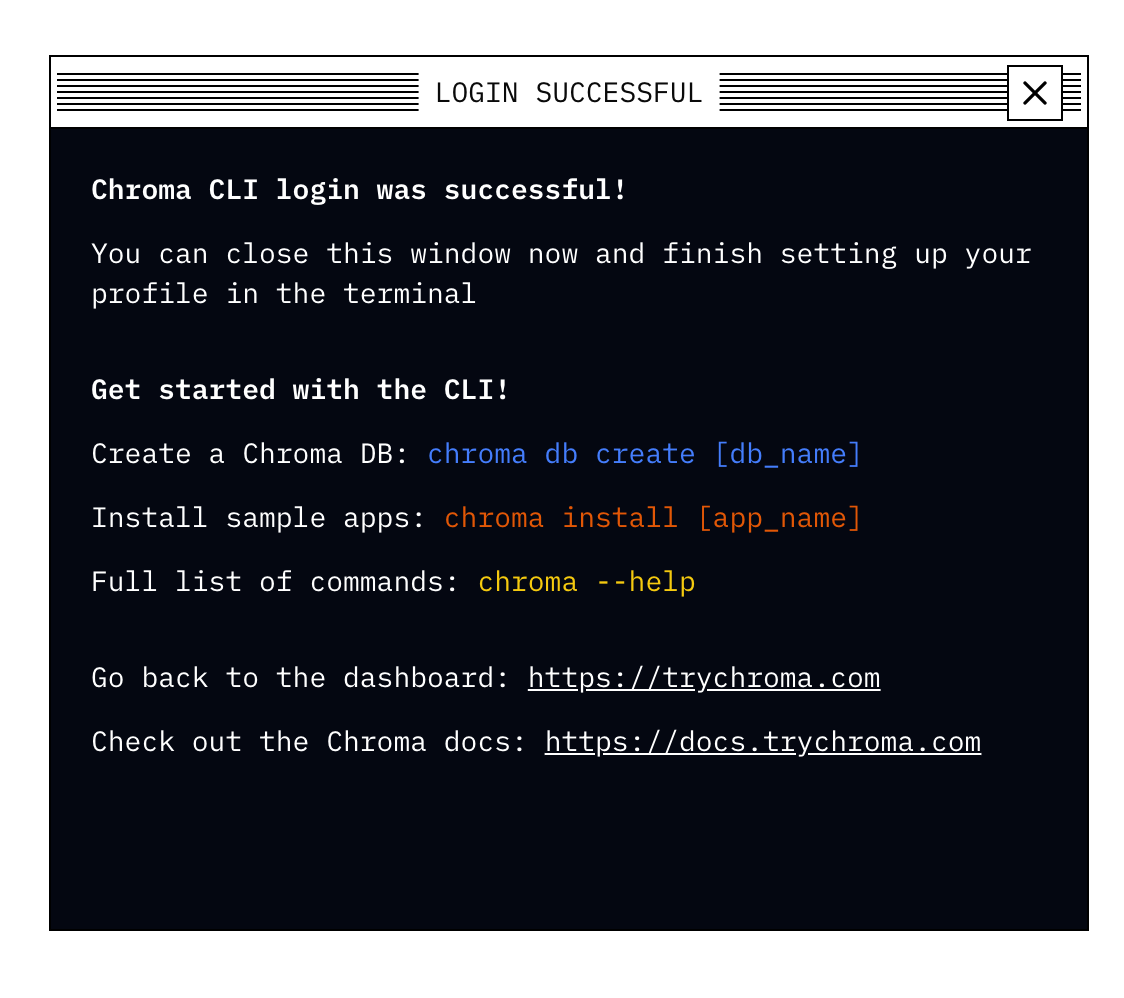
The CLI will open a browser window verifying that the authentication was successful. If so, you should see the following:
Back in the CLI, you will be prompted to select the team you want to authenticate with. Each team login gets its own profile in the CLI. Profiles persist the API key and tenant ID for the team you log-in with. You can find all your profiles in .chroma/credentials under your home directory. By default, the name of the profile is the same name of the team you logged-in with. However, the CLI will let you edit that name during the login, or later using the chroma profile rename command.Upon your first login, the first created profile will be automatically set as your “active” profile.On subsequent logins, the CLI will instruct you how to switch to a new profile you added (using the chroma profile use command).