Arguments
collection_name- The name of the collection you want to browse. This is a required argument.db_name- The name of the Chroma Cloud DB with the collection you want to browse. If not provided, the CLI will prompt you to select a DB from those available on your active profile. For local Chroma, the CLI uses thedefault_database.local- Instructs the CLI to find your collection on a local Chroma server athttp://localhost:8000. If your local Chroma server is available on a different hostname, use thehostargument instead.host- The host of your local Chroma server. This argument conflicts withpath.path- The path of your local Chroma data. If provided, the CLI will use the data path to start a local Chroma server at an available port for browsing. This argument conflicts withhost.theme- The theme of your terminal (lightordark). Optimizes the UI colors for your terminal’s theme. You only need to provide this argument once, and the CLI will persist it in~/.chroma/config.json.
The Collection Browser UI
Main View
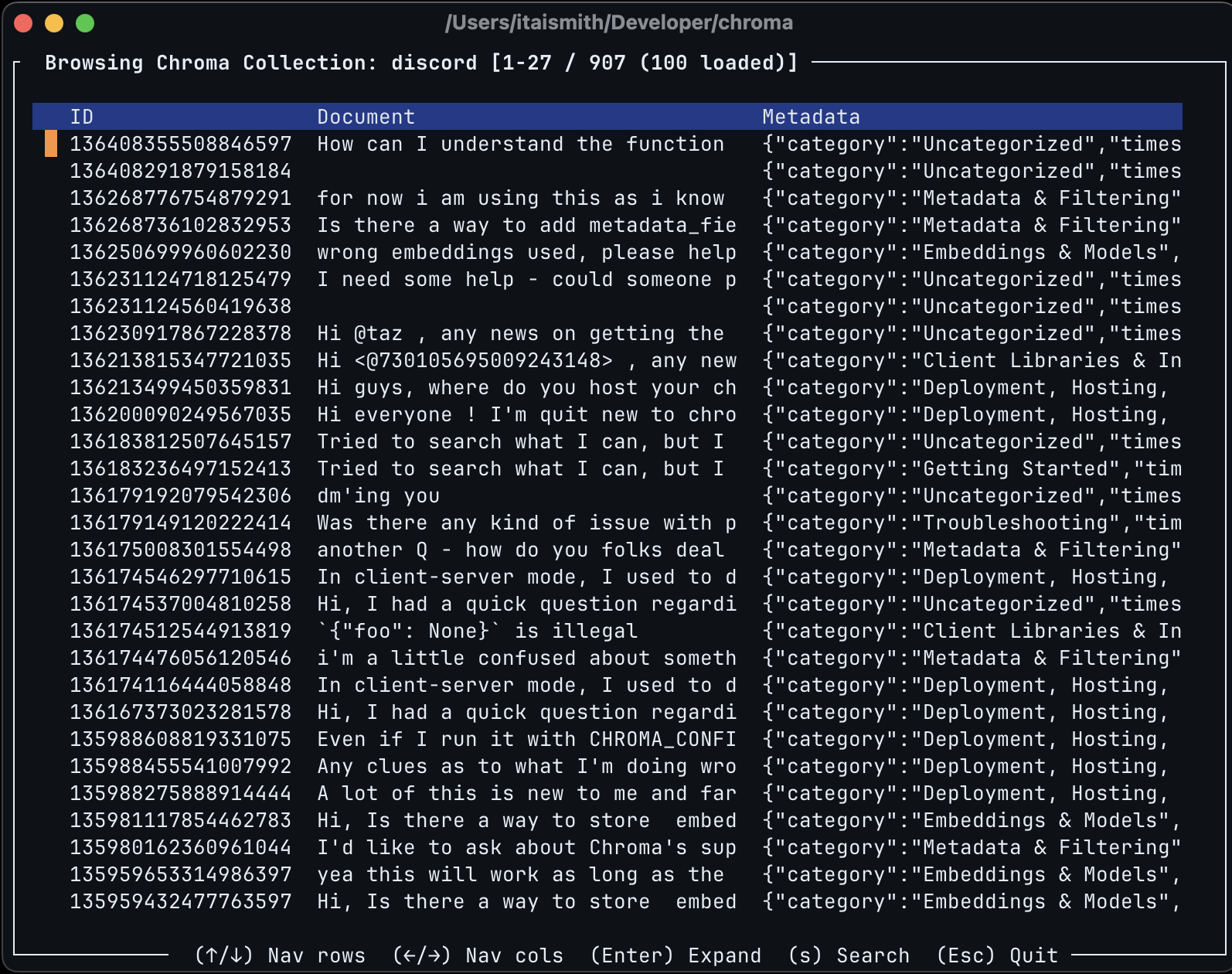
The main view of the Collection Browser shows you a tabular view of your data with record IDs, documents, and metadata. You can navigate the table using arrows, and expand each cell withReturn. Only 100 records are loaded initially, and the next batch will load as you scroll down the table.
Search
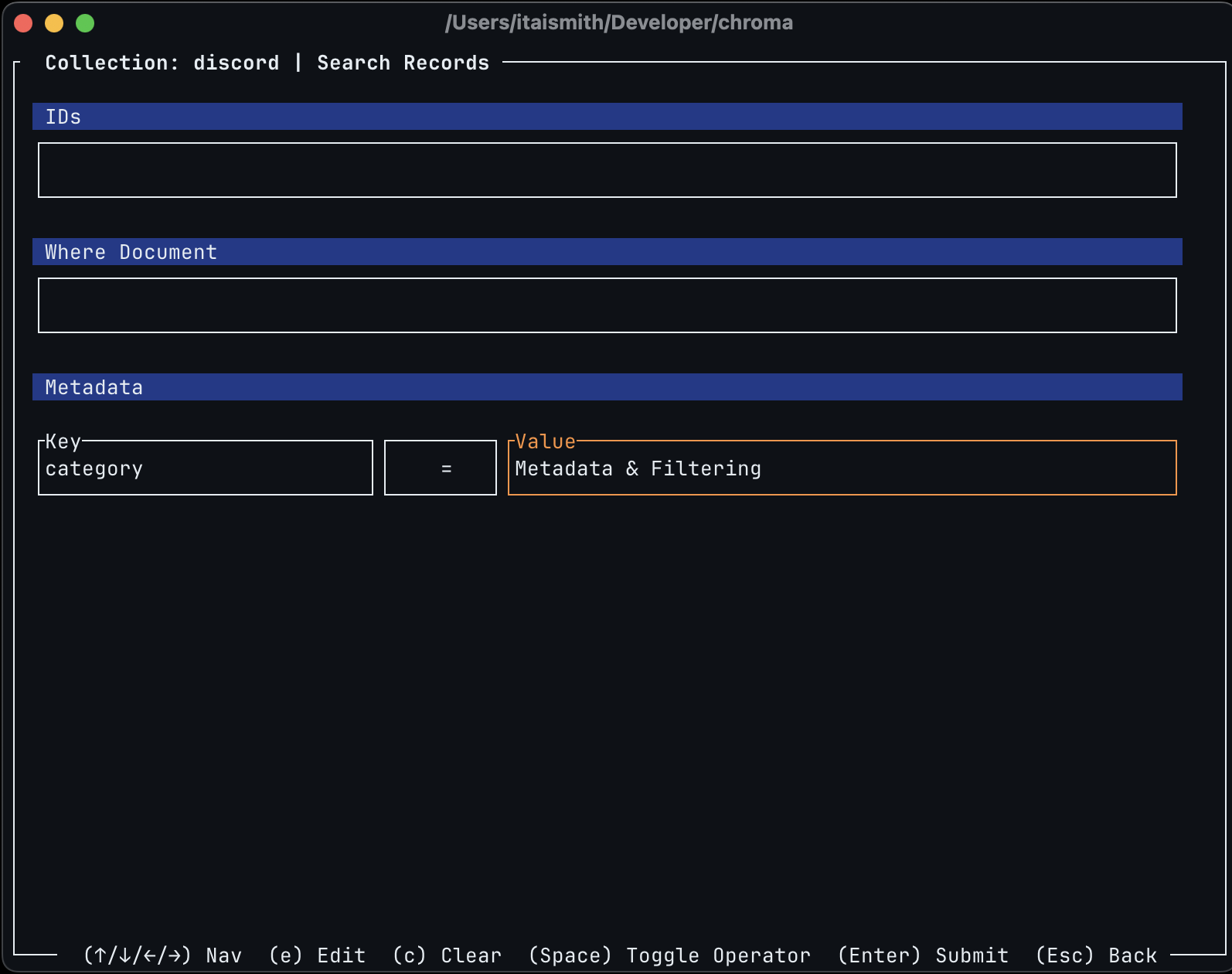
You can enter the query editor by hittings on the main view. This form allows you to submit .get() queries on your collection. You can edit the form by hitting e to enter edit mode, use space to toggle the metadata operator, and Esc to quit editing mode. To submit a query use Return.
The query editor persists your edits after you submit. You can clear it by hitting c. When viewing the results you can hit s to get back to the query editor, or Esc to get back to the main view.