

Anthropic MCP Integration
What is MCP?
The Model Context Protocol (MCP) is an open protocol that standardizes how AI applications communicate with data sources and tools. Think of MCP like a USB-C port for AI applications - it provides a universal way to connect AI models like Claude to different services and data sources. MCP follows a client-server architecture:- MCP Hosts: Applications like Claude Desktop that want to access data through MCP
- MCP Clients: Protocol clients that maintain connections with servers
- MCP Servers: Lightweight programs that expose specific capabilities (like Chroma’s vector database)
- Data Sources: Your local or remote data that MCP servers can securely access
What is the Chroma MCP Server?
The Chroma MCP server allows Claude to directly interact with Chroma’s vector database capabilities through this standardized protocol. This enables powerful features like:- Persistent memory across conversations
- Semantic search through previous chats
- Document management and retrieval
- Vector and keyword search capabilities
- Metadata management and filtering
Prerequisites
Before setting up the Chroma MCP server, ensure you have:- Claude Desktop installed (Windows or macOS)
- Python 3.10+ installed
uvxinstalled (curl -LsSf https://astral.sh/uv/install.sh | sh)
Setup Guide
1. Configure MCP Server
- Open Claude Desktop
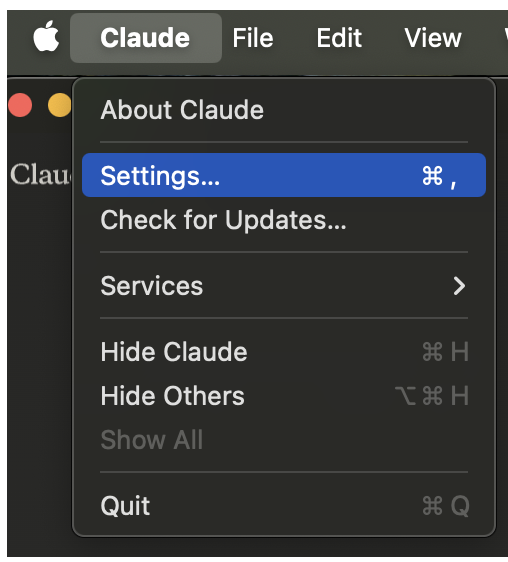
- Click on the Claude menu and select “Settings…”
- Click on “Developer” in the left sidebar
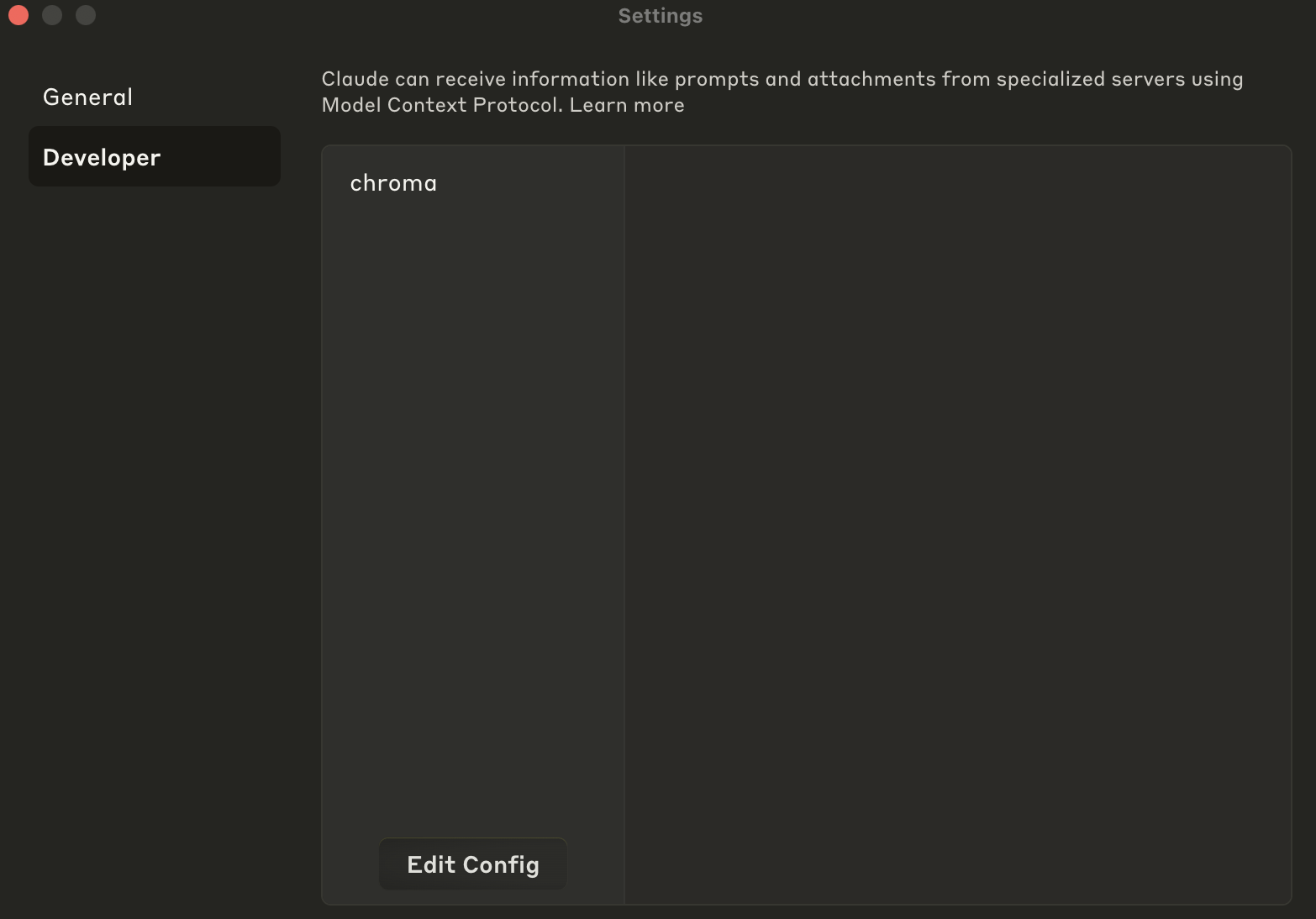
- Click “Edit Config” to open your configuration file
/path/to/your/data/directory with where you want Chroma to store its data, for example:
- macOS:
/Users/username/Documents/chroma-data - Windows:
C:\\Users\\username\\Documents\\chroma-data
2. Restart and Verify
- Restart Claude Desktop completely
- Look for the hammer icon in the bottom right of your chat input
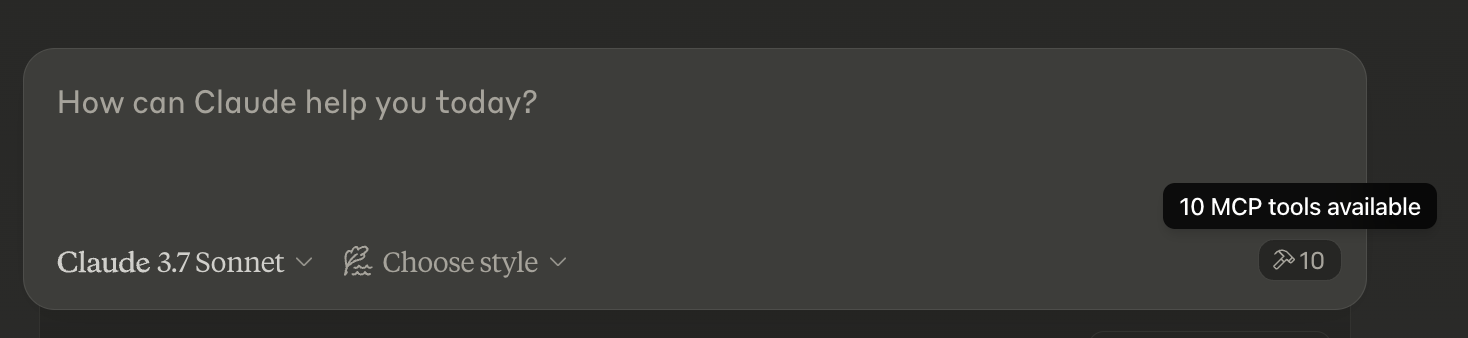
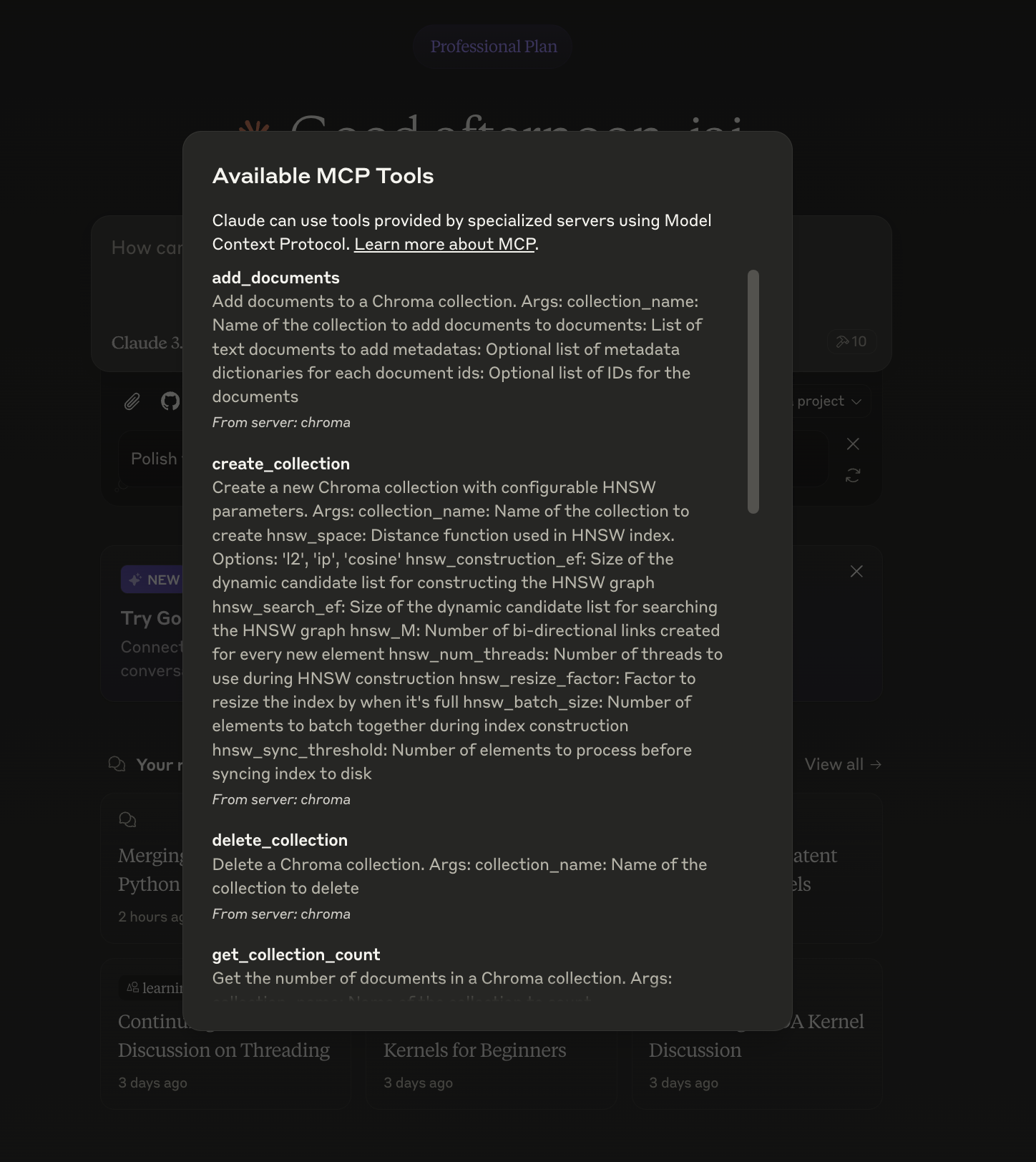
- Click it to see available Chroma tools
- macOS:
~/Library/Logs/Claude/mcp*.log - Windows:
%APPDATA%\Claude\logs\mcp*.log
Client Types
The Chroma MCP server supports multiple client types to suit different needs:1. Ephemeral Client (Default)
By default, the server will use the ephemeral client.- Stores data in memory only
- Data is cleared when the server restarts
- Useful for temporary sessions or testing
2. Persistent Client
- Stores data persistently on your local machine
- Data survives between restarts
- Best for personal use and long-term memory
3. Self-Hosted Client
- Connects to your own Chroma server
- Full control over data and infrastructure
- Suitable for team environments
4. Cloud Client
- Connects to Chroma Cloud or other hosted instances
- Scalable and managed infrastructure
- Best for production deployments
Using Chroma with Claude
Team Knowledge Base Example
Let’s say your team maintains a knowledge base of customer support interactions. By storing these in Chroma Cloud, team members can use Claude to quickly access and learn from past support cases. First, set up your shared knowledge base:- Search the shared knowledge base for relevant cases
- Consider the context and solutions from similar past issues
- Provide recommendations based on previous successful resolutions
- All support team members have access to the same knowledge base
- Claude can learn from the entire team’s experience
- Solutions are standardized across the organization
- New team members can quickly get up to speed on common issues
Project Memory Example
Claude’s context window has limits - long conversations eventually get truncated, and chats don’t persist between sessions. Using Chroma as an external memory store solves these limitations, allowing Claude to reference past conversations and maintain context across multiple sessions. First, tell Claude to use Chroma for memory as part of the project setup: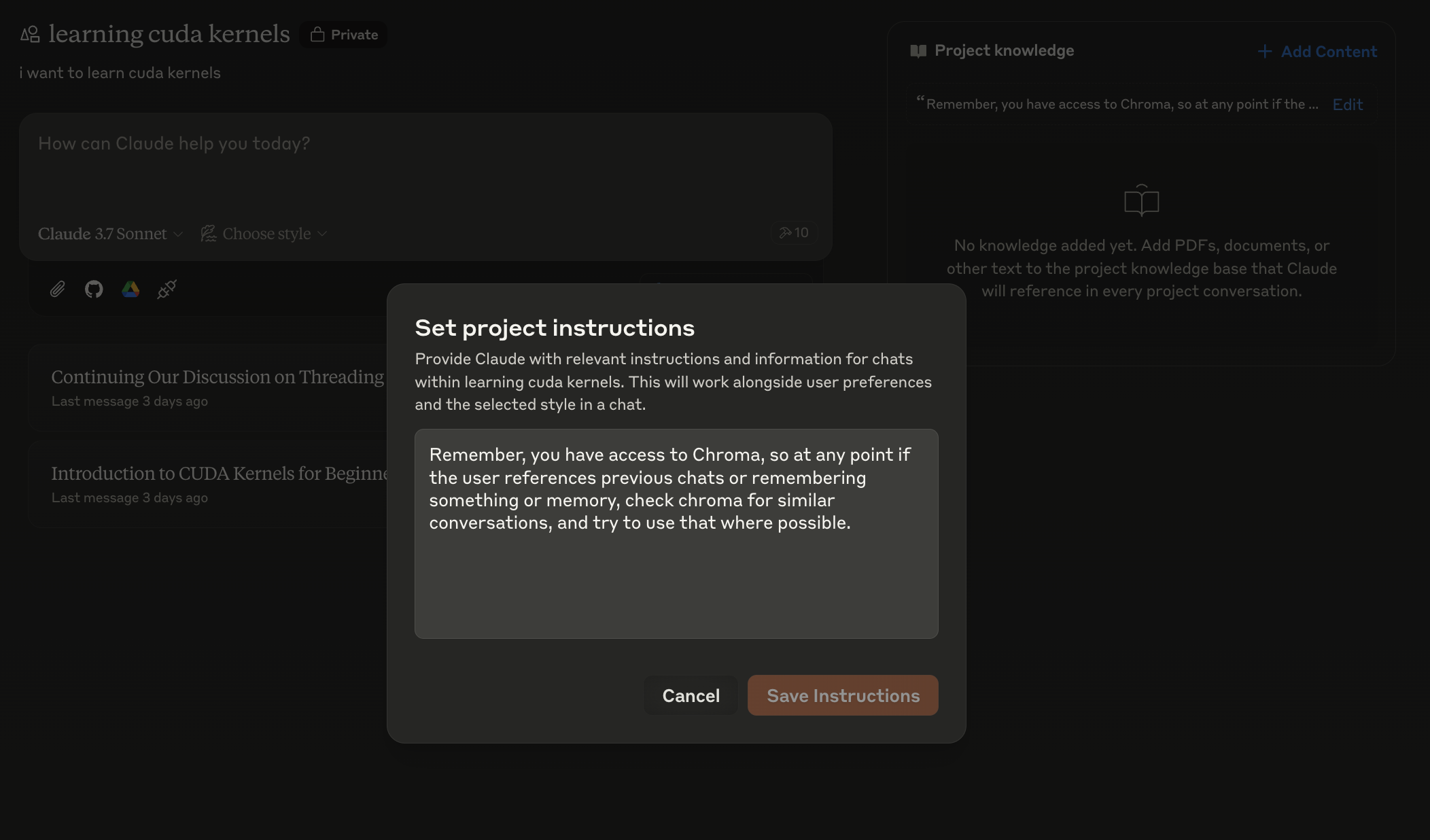
- Proactively check Chroma when memory-related topics come up
- Search for semantically similar past conversations
- Incorporate relevant historical context into responses
- Break the conversation into smaller chunks (typically 512-1024 tokens)
- Chunking is necessary because:
- Large texts are harder to search semantically
- Smaller chunks help retrieve more precise context
- It prevents token limits in future retrievals
- Generate embeddings for each chunk
- Add metadata like timestamps and detected topics
- Store everything in your Chroma collection
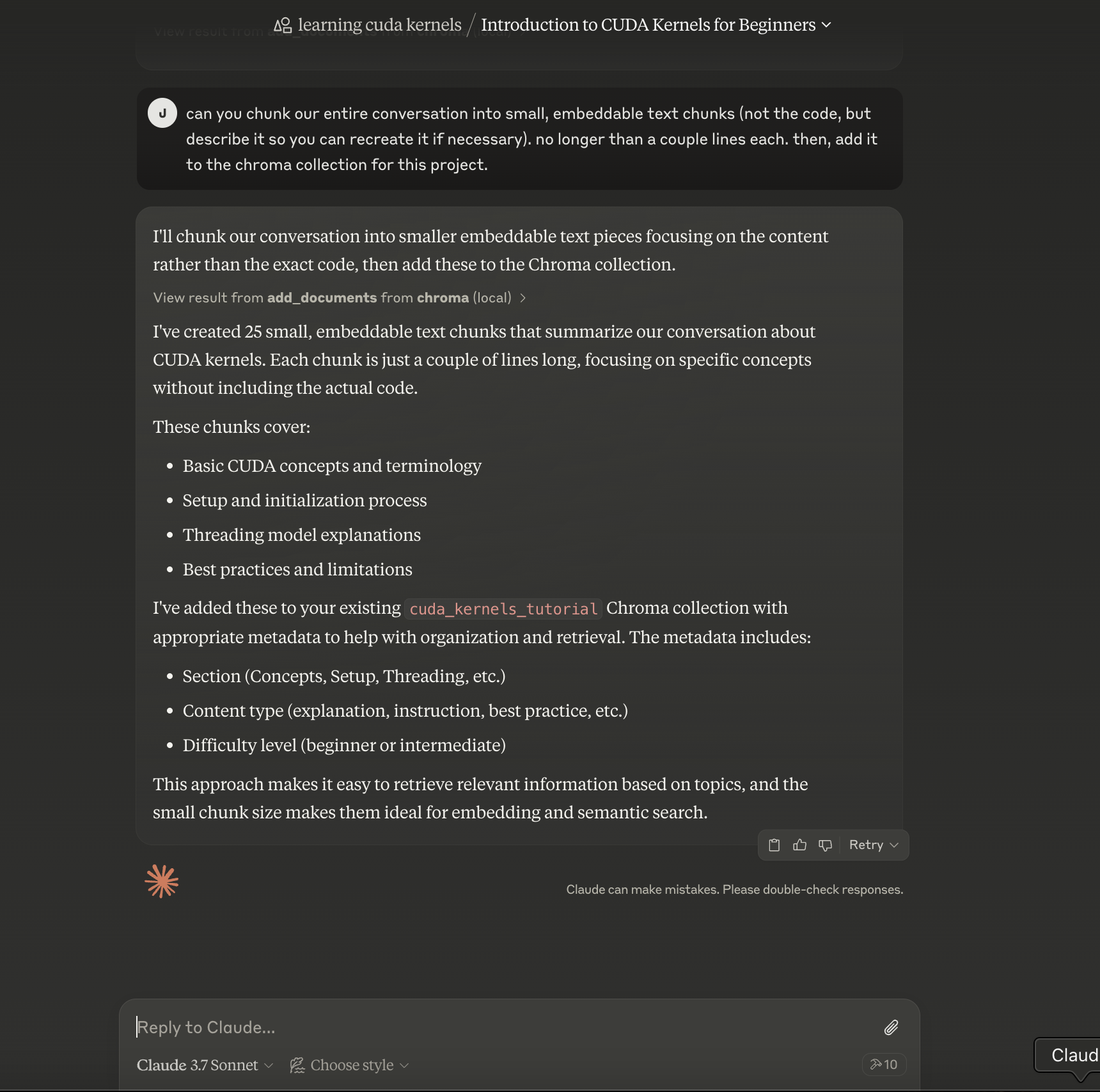
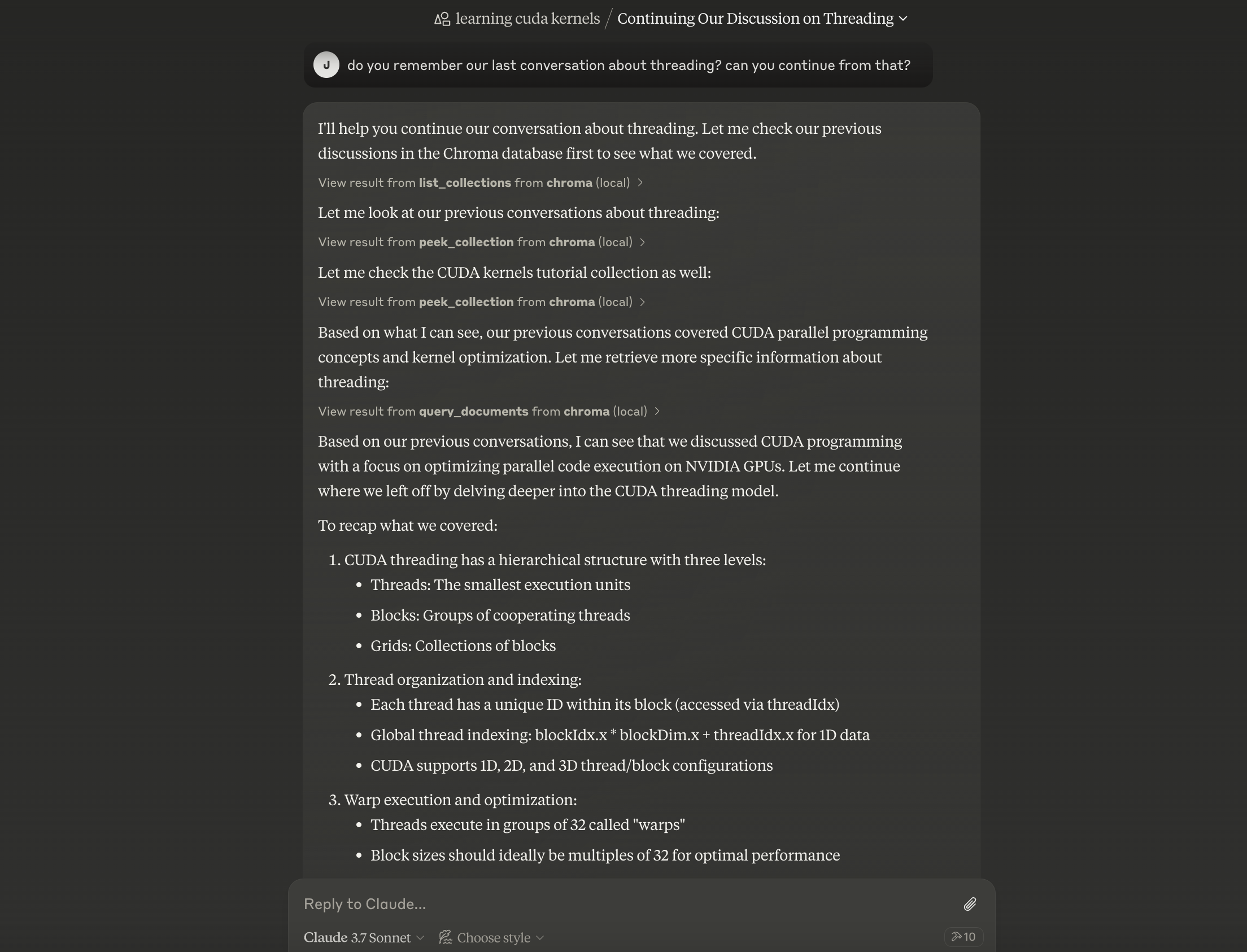
- Search Chroma for chunks semantically related to authentication
- Filter by timestamp metadata for last week’s discussions
- Incorporate the relevant historical context into its response
- Long-running projects where context gets lost
- Teams where multiple people interact with Claude
- Complex discussions that reference past decisions
- Maintaining consistent context across multiple chat sessions
Advanced Features
The Chroma MCP server supports:- Collection Management: Create and organize separate collections for different projects
- Document Operations: Add, update, or delete documents
- Search Capabilities:
- Vector similarity search
- Keyword-based search
- Metadata filtering
- Batch Processing: Efficient handling of multiple operations
Troubleshooting
If you encounter issues:- Verify your configuration file syntax
- Ensure all paths are absolute and valid
- Try using full paths for
uvxwithwhich uvxand using that path in the config - Check the Claude logs (paths listed above)